How to uninstall Valorant completely: remove the game, the Riot Vanguard anti-cheat and, if you like, the Riot Client, delete leftover folders and reinstall cleanly – step by step, based on Riot’s official guides. Your skins and ranks stay on your account.
Last updated: October 9, 2026

To uninstall Valorant completely: close the Riot Client, open Settings → Apps → Installed apps in Windows, uninstall VALORANT first and then Riot Vanguard, restart your PC and delete the leftover folders C:\Riot Games\VALORANT, %localappdata%\VALORANT and %localappdata%\Riot Games. Vanguard is only removed automatically when no other Riot game that needs it (such as League of Legends) is still installed. Your skins and rank stay safe – they belong to your Riot account, not your PC.
Whether you need disk space, want to get rid of a stubborn error, plan to move Valorant to another SSD or are simply taking a break: a clean uninstall takes more than one click. Valorant comes with two companions – the Riot Client, which launches the game and downloads updates, and the anti-cheat Riot Vanguard, which is anchored deep in Windows and loads at boot. This guide shows you step by step how to remove all three parts, which folders are left behind and how to reinstall Valorant later without error codes. Every step is based on the official Riot support articles (as of October 2026).
Riot says it plainly in its guide: the Riot Client has to be closed, otherwise Riot games can’t be uninstalled. Clicking the X often isn’t enough, because the client keeps running in the background.
Ctrl + Shift + Esc and make sure no “Riot Client” or “VALORANT” processes are running. If they are, select them and click “End task”.In its support article “Uninstall and Reinstall Games”, Riot recommends going through Windows. It’s also the most reliable way, because Windows launches the game’s own uninstaller.
Riot notes that you may need to restart your computer for this step. If you get an error while uninstalling, a Riot process is almost always still running – restart the PC and try again right away, before you open the Riot Client.
| Windows | Path | Entry |
|---|---|---|
| Windows 11 | Settings → Apps → Installed apps | VALORANT → ⋯ → Uninstall |
| Windows 10 | Settings → Apps → Apps & features | VALORANT → Uninstall |
| Both | Control Panel → Programs and Features | VALORANT → Uninstall |
Riot Vanguard is Valorant’s anti-cheat. It runs as a driver with high privileges and, according to Riot, starts when Windows boots (“on-boot application”). Whether it disappears together with Valorant depends on your other Riot games. Riot puts it like this: Vanguard is only removed automatically if you uninstall all software that requires it. So if League of Legends is still installed, Vanguard stays on your PC – which is correct, because League needs it too.
If you want to remove Vanguard yourself anyway, Riot’s article “Uninstall and Disable Vanguard” lists three ways:
Right-click the Vanguard icon in the system tray → Advanced or More… (depending on the version) → Uninstall Vanguard. Confirm, done.
Settings → Apps → Installed apps (Windows 10: Apps & features) → Riot Vanguard → Uninstall.
Open Command Prompt as administrator, enter sc delete vgc and sc delete vgk, restart the PC and delete the folder C:\Program Files\Riot Vanguard.
Restart afterwards – this is essential. Because Vanguard is a driver that loads at startup, it’s only really gone after a reboot. Riot also gives a simple check: if the Vanguard icon no longer shows up in the tray after the restart, Vanguard is fully removed.
The Riot Client is the launcher for every Riot game – Valorant, League of Legends, Teamfight Tactics and Legends of Runeterra. If you still play another Riot game, keep it installed. Without the client, none of the games will start.
If you want to remove everything from Riot, here’s how:
C:\Riot Games\Riot Client. Delete it once no Riot processes are running.If uninstalling the client fails with an error, community reports suggest a look into C:\Riot Games\Riot Client: if there’s a file RiotClientServices.exe.old but no RiotClientServices.exe, an interrupted update may be the cause. Riot doesn’t document this case itself – when in doubt, simply delete the folder after Valorant and Vanguard are gone.
Even after uninstalling, settings, logs and cache files stay behind. For a truly clean reinstall – for example when an error persists despite a repair – Riot recommends deleting these folders and emptying the Recycle Bin afterwards. Paths with %…% can be pasted straight into the File Explorer address bar or into Win + R.
| Folder | What’s in it? | Delete? |
|---|---|---|
C:\Riot Games\VALORANT | Game files (default install location) | Yes |
C:\Riot Games\Riot Client | Launcher | Only without other Riot games |
%localappdata%\VALORANT | Settings, logs, crash dumps | Yes |
%localappdata%\Riot Games | Client data and logs | Only without other Riot games |
C:\Program Files\Riot Vanguard | Anti-cheat (after uninstalling Vanguard) | Yes, if still there |
For a clean uninstall of League of Legends, Riot additionally mentions C:\ProgramData\Riot Games. It holds the client’s install info for all Riot games – so only delete it if no Riot game at all is installed anymore. Finally, restart your PC.
%localappdata%\VALORANT also holds your local configuration. Many game settings are stored in your account as well. To be completely safe, write down your crosshair code beforehand anyway.Next: clean up your PC
Space freed? Remove the junk while you’re at it
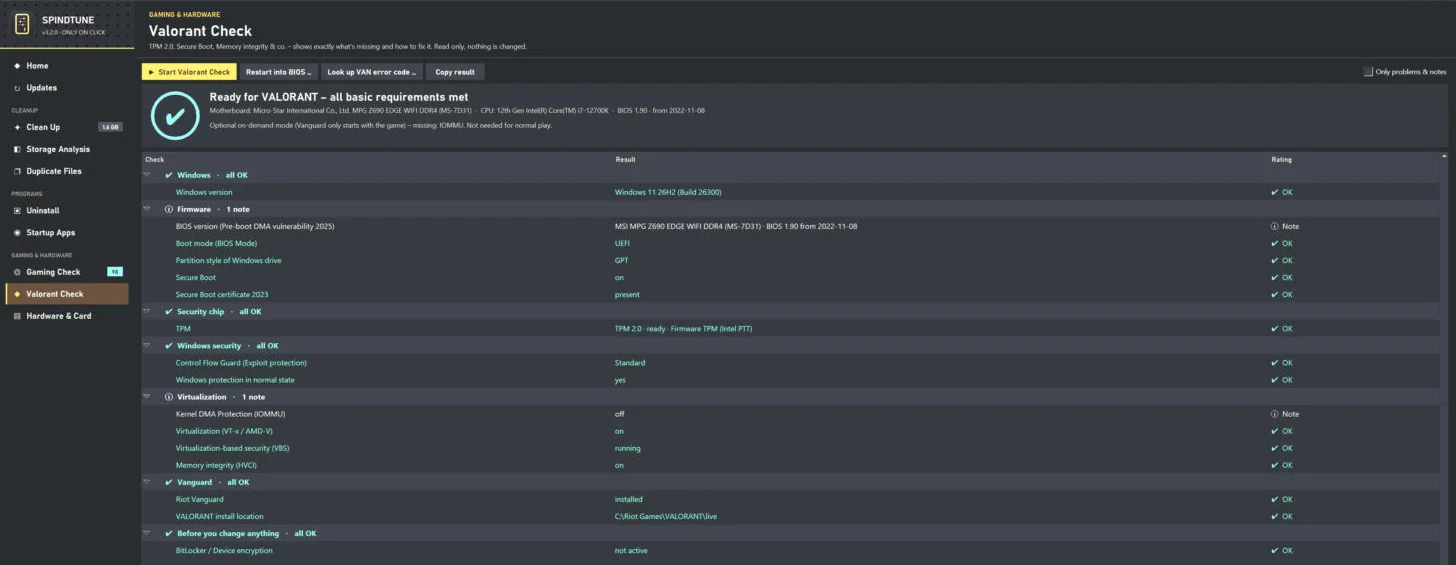
Our free Windows tool SpindTune analyses temporary files, old Windows Update downloads, crash reports and browser caches and only deletes after your click – with a restore point. When you reinstall Valorant later, the Valorant Check verifies TPM 2.0, Secure Boot and Memory integrity in seconds. No account, no ads.
If you only want to delete Valorant because the game crashes, won’t start or reports corrupted files, try the built-in repair first. Riot describes it in the article “Riot Client Full Repair Tool”:
The client checks every game file and re-downloads missing or corrupted ones – according to Riot this works for Valorant, League of Legends, TFT and Legends of Runeterra. It usually takes just a few minutes and saves you the full re-download. If the repair doesn’t help, the clean reinstall from this guide is the next step. More on typical launch problems in our Valorant tech fix and at VAN 1067.
There’s no official “move” feature in the Riot Client, and Riot hasn’t published a guide for it either. You have two options:
Recommended: reinstall
Unofficial: move the folder
VALORANT folder to the new drive, open the client. The button now says “Install” – pick the new path via the folder icon and the client detects the files.C:\. Most players never see this code, but anyone putting Valorant on a USB SSD or a second drive should know it. Every code is explained in our Secure Boot & TPM guide.Riot doesn’t list an official storage figure on its system requirements page. Current community measurements (September 2026) put Valorant at roughly 23 GB to download and around 26 GB on disk. The game grows a little with every patch, new map and new agent. So for a reinstall, plan for 30 GB or more of free space so the next update goes through without trouble. Ideally, put Valorant on an SSD – it noticeably shortens loading times. Everything else your PC needs is in the Valorant system requirements.
| Code | Meaning | Fix |
|---|---|---|
| VAN 9001 / 9003 | TPM 2.0 or Secure Boot missing on Windows 11 | Enable TPM & Secure Boot |
| VAN 1067 | Vanguard ran into a problem at startup | Fix VAN 1067 |
| VAN: RESTRICTION: 3 | Game is on an external or secondary drive | Reinstall on C:\ |
| VAN: RESTRICTION: 5 | Memory integrity (HVCI) is off | Enable Memory integrity |
| Other VAN codes | Connection or Vanguard service | All VAN error codes |
A Riot process is still running. Exit the Riot Client and Vanguard from the tray, or restart the PC and uninstall right away.
Normal: Vanguard stays as long as another game needs it. Remove it specifically via “Riot Vanguard” in Installed apps.
Then the game is usually already gone and only the folder is left. Delete the leftover folders from the table above and restart.
Uninstalling Valorant is quick if you stick to the order: exit the Riot Client and Vanguard, remove Valorant via “Installed apps”, uninstall Vanguard, restart and delete the leftover folders. Only remove the Riot Client if you don’t play any other Riot game.
If you just want to get rid of an error, try “Repair” in the Riot Client first. And when you reinstall: get the installer only from playvalorant.com, restart after the first launch – and for VAN codes, our Secure Boot & TPM guide has you covered. Your skins, agents and ranks wait unchanged on your Riot account either way.
Only if no other Riot game that needs Vanguard is still installed. According to Riot, Vanguard is only removed automatically once you uninstall all software that requires it. If League of Legends is still installed, for example, Vanguard stays. You can always remove it specifically via “Installed apps” → “Riot Vanguard”.
No. Skins, agents, rank, level and Valorant Points are tied to your Riot account and stored on Riot’s servers. After a reinstall you log in and everything is back.
Yes. Riot Vanguard is a driver that starts when Windows boots, so it’s only fully removed after a restart. If the Vanguard icon no longer appears in the system tray afterwards, you’re done.
By default in C:\Riot Games\VALORANT, the Riot Client in C:\Riot Games\Riot Client and Vanguard in C:\Program Files\Riot Vanguard. Settings and logs live in %localappdata%\VALORANT and %localappdata%\Riot Games.
Riot officially describes the Windows route: close the Riot Client, then uninstall VALORANT under “Installed apps” or “Apps & features”. In the Riot Client, profile icon → Settings → VALORANT offers “Repair”, which fixes corrupted files.
Riot doesn’t state an official figure. Community measurements from September 2026 put it at roughly 23 GB to download and around 26 GB installed. Plan for 30 GB or more of free space for updates.
Yes. During installation, pick a different folder via the advanced options. If Vanguard then shows the code VAN: RESTRICTION: 3, it requires the Windows drive for your account – reinstall Valorant on C:\ in that case.
Right-click the Vanguard icon in the system tray → Advanced or More… → Uninstall Vanguard, or go to “Installed apps” → “Riot Vanguard” → Uninstall. Restart afterwards. The next time you launch Valorant or League, Vanguard reinstalls itself automatically.
Sources: Riot Support articles “Uninstall and Reinstall Games” (June 1, 2026), “Uninstall and Disable Vanguard” (May 30, 2026), “Riot Vanguard FAQ” (June 2, 2026), “What is Vanguard?” (June 2, 2026), “Riot Client Full Repair Tool” (May 30, 2026), “Vanguard Error Codes” (May 22, 2026), “Error VAN: RESTRICTION: 3” and “Error VAN: RESTRICTION: 5” (March 13, 2026), “Minimum & Recommended PC Specs” (May 21, 2026); disk space: community measurements from September 2026. Retrieved October 9, 2026. Menu names may change with Windows and client updates.
